







MODLR recently launched its game-changing Visual Scripting Engine, which gives you a novel way of building, automating and managing data workflows. Visual processes allow for low-code data transformation. You don’t need to write a single line of code! The versatile Visual Scripting Engine is now available to all MODLR users.
Watch our first video for An Overview of the MODLR Visual Scripting Engine.
In this video—the second in a series on visual processing—we show you how to import exchange rates from a Forex API service to store in a MODLR cube.
How do the drag and drop features of visual processing help you import and store Forex data into a MODLR data cube?
Here’s a simple step-by-step summary on how you can import exchange rates from a Forex API service into a MODLR cube:
- Create a date argument to select the exchange rate date.
- Add an HTTP request to call the Forex API with the required headers and parameters.
- Extract the rates from API response for the selected date.
- Loop through each currency and rate returned.
- Insert any missing currency and date elements into the dimensions.
- Write the exchange rate values into Forex cube.
That’s it — the process fetches the rates and updates the cube automatically.
Wondering what MODLR cubes are? Check out this article: Why MODLR uses cubes instead of tables.
For more detailed guidance, READ the Extended Video Summary.
How to Use a Forex API to load Exchange Rates into a Cube - MODLR Visual Process Tutorial
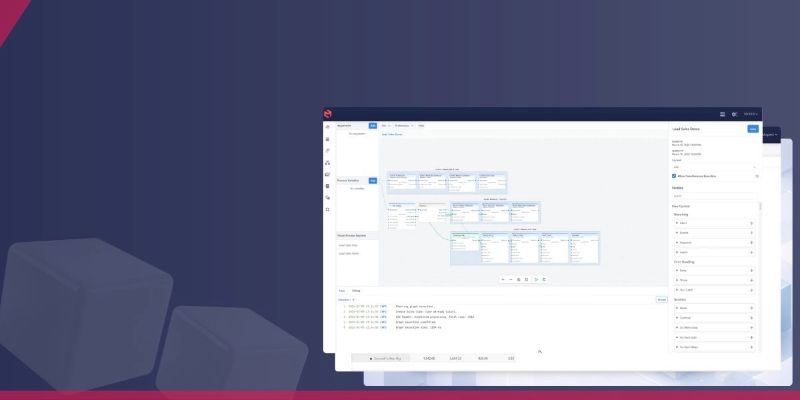
Welcome. In this video, we demonstrate a more complex example of the visual process system by building a process that fetches exchange rates for a specific date from a third-party API like Fixer and writes them into our Forex Cube.
First, we need a date to retrieve this information. We create an argument called *date* and fill out the required fields.
Next, we add an HTTP request node and point it to Fixer’s time series endpoint. We set the method to GET and enter the API URL. Fixer requires a header called *API key* for authentication. To build a map of headers, we drop in a map create node and add a key and value for this header. We connect the value for the API key to a secret node so we don’t have to store the key inside the process, keeping it secure.
The API also requires query parameters. We add another map create node, similar to what we did for headers, to define these parameters. The request requires a start date, end date, base currency, and a list of currencies for which we want exchange rates for. We add keys and values for each of these.
For the list of currencies, we use a list node and add the desired currencies. Since the API expects this list as a single comma-separated string, we link the list to a string join node. We then bring in an argument node for our date and connect it to both the start and end date values.
With the request configured, we move on to handling the API response from Fixer. The visual process system automatically converts the response into a map. From there, we can drill into the *rates*, select our date, and pull each currency/rate pair easily.
We add a map get value node to extract the *rates* from the response, setting its key to “rates*. Then we add another map get value node for the date, using our date argument as the key.
The output is now a simple map of currency codes to numbers. To iterate through each currency/rate pair, we add a for-each map node and connect the extracted rates into its values port. Inside this loop, we capture the currency—represented as the key in each key-value pair—and store it in a variable called *currency*, so we can use it cleanly in the next steps.
We add a sequence node. While not strictly necessary, it helps separate blocks within the visual process and control the order of execution.
Next, we add a hierarchy insert element node to insert the current currency into the currency dimension, under the default hierarchy and “all currencies.” We repeat the process for the date element, inserting it into the date dimension under “all dates” in the default hierarchy.
Finally, we update the cube. We create a cube update from list node and set the cube to Forex. We add three items to the list for each dimension and apply our values: the date argument for the date dimension, the currency variable for the currency dimension, and Australian dollars for the measure dimension. We then connect the forex value to the value port.
That’s it. When the process runs, it requests the exchange rates for the specified day, inserts them into the cube, and creates any missing elements automatically. The result is a populated cube reflecting the exchange rates retrieved for that date.

.jpg)