









Excel replacement does not always mean abandoning Excel. The MODLR Excel Add-in lets finance teams report, analyse and submit planning data through familiar Excel workbooks, while MODLR manages the underlying model, calculations, security and governance.
Executive Summary
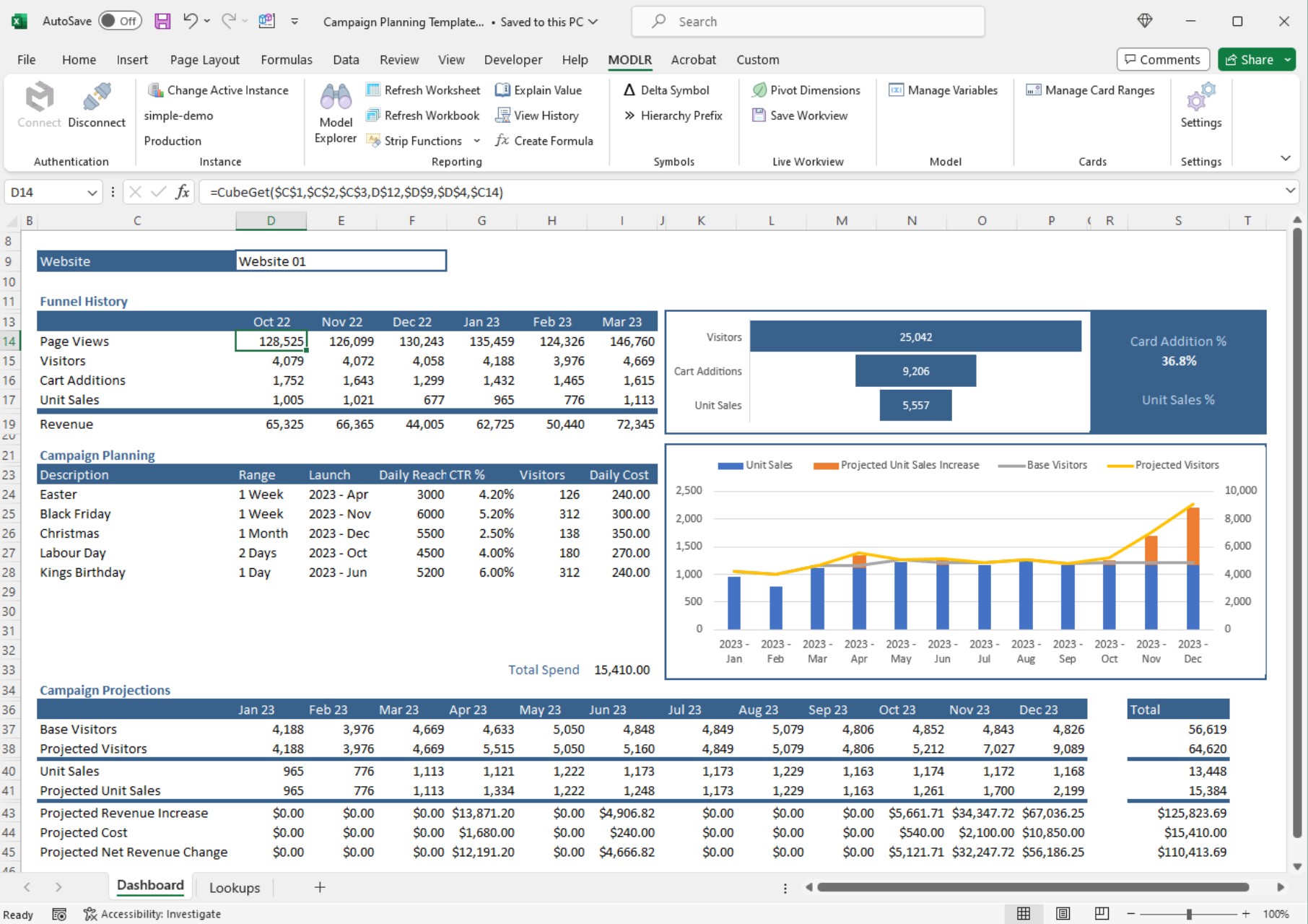
The MODLR Excel Add-in gives finance teams a practical way to move from spreadsheet-based planning to connected planning without abandoning Excel.
It allows Excel to act as a familiar front end, while MODLR remains the governed planning platform behind it. This means the core planning model, data, calculations, security, workflows, and audit trails stay in MODLR, not in disconnected spreadsheets.
For example, a finance team can open an established budget template in Excel, retrieve current actuals and forecast data from MODLR, enter authorised planning assumptions and write those inputs back to the correct MODLR cube intersections.
Key benefits of the Excel Add-in include:
- Continued use of familiar Excel layouts
- Live access to MODLR data and cubes
- Ability to send data back into MODLR
- Support for Live Workviews, CardsCubeGet, and CubeSend
- Stronger governance, auditability, and control
- Easier transition from Excel-based planning to connected planning
In short, the Add-in changes Excel’s role. Excel shows and interacts with the numbers, but MODLR owns the model.
In this article:
- Executive Summary
- Introduction
- What is the MODLR Excel Add-in?
- Excel Integration vs the MODLR Excel Add-in
- How Does the MODLR Excel Add-in Work?
- Does the MODLR Excel Add-in replace Excel?
- What is the Excel-as-front-end approach?
- Excel Alone vs Excel with MODLR?
- What Can Users Do with the Excel Add-in?
- What is CubeGet and CubeSend in the MODLR Excel Add-in?
- Can Users Open MODLR Workviews in Excel?
- Can You Build Custom Excel Reports & Board Packs with MODLR data?
- Can MODLR Cards be Used in Excel?
- Can Excel Files be Shared with People Not Using MODLR?
- Permissions, Governance & Auditability: How Are Access and Writeback Controlled?
- Why is the MODLR Excel Add-in Useful for Finance Teams?
- Does the MODLR Excel Add-in Support Connected Planning?
- Is The MODLR Excel Add-in Suitable for Excel Replacement Projects?
- What Finance Processes Benefit From the MODLR Excel Add-in?
- What is the Main Benefit of Using Excel with MODLR?
- Final Takeaway
- Want More Info on MODLR’s Excel Add-In?
- FAQs: MODLR Excel Add-in & Transition from Excel to Connected Planning
Introduction
For many finance teams, Excel remains the most familiar place to work. It is flexible, easy to format and widely understood across the business. However, when Excel becomes the main system for budgeting, forecasting, reporting and planning, the risks and issues begin to grow.
Version-control problems, broken formulas, need for manual financial consolidation, limited auditability and weak governance can make spreadsheet-based planning increasingly difficult to manage when organisations grow in size and complexity.
The choice, however, does not have to be framed as Excel versus MODLR. The MODLR Excel Add-in provides a practical middle ground. It allows finance teams to continue working through a familiar Excel interface while MODLR acts as the structured planning platform behind it. Data, calculation logic, security, workflows and audit trails remain in MODLR, so Excel becomes the front end rather than the system of record. This eliminates many issues mentioned above.
This Excel-as-front-end approach also makes the transition from spreadsheets to connected planning easier for users. Team members can retain familiar layouts and ways of working while gradually moving critical planning processes into a more controlled, connected and scalable environment.
This guide explains how the MODLR Excel Add-in works, what finance teams can do with it and how it combines Excel familiarity with the governance and control of connected planning that MODLR offers.
What is the MODLR Excel Add-in?
The MODLR Excel Add-in allows finance teams to work with MODLR directly from Microsoft Excel.
It is particularly useful for organisations transitioning from spreadsheet-based planning to a connected planning environment. It connects Excel to the MODLR platform, so users can retrieve data, send data, open MODLR Workviews, and build reports using familiar spreadsheet layouts. This means Excel can remain part of the finance workflow without becoming the main planning system.
By moving the core model and controls into MODLR, the Add-in helps reduce many of the version-control, governance and auditability risks associated with using disconnected spreadsheets as the planning system.
Excel Integration vs the MODLR Excel Add-in
MODLR’s Excel integration is the broader capability to import, export or process spreadsheet-based data as part of a planning or data workflow.
The MODLR Excel Add-in is the user-facing tool that connects Microsoft Excel directly to MODLR. It allows users to retrieve cube data, write authorised values back, open Live Workviews, use MODLR formulas and run selected Cards from Excel.
To put it simply, the Excel integration moves spreadsheet data between systems. The Excel Add-in lets users work with MODLR from inside Excel.
How Does the MODLR Excel Add-in Work?
The Add-in connects an Excel workbook to an authorised MODLR instance. Once connected, users can retrieve model data, interact with Workviews, execute selected Cards and, where permissions allow, send planning inputs back into MODLR.
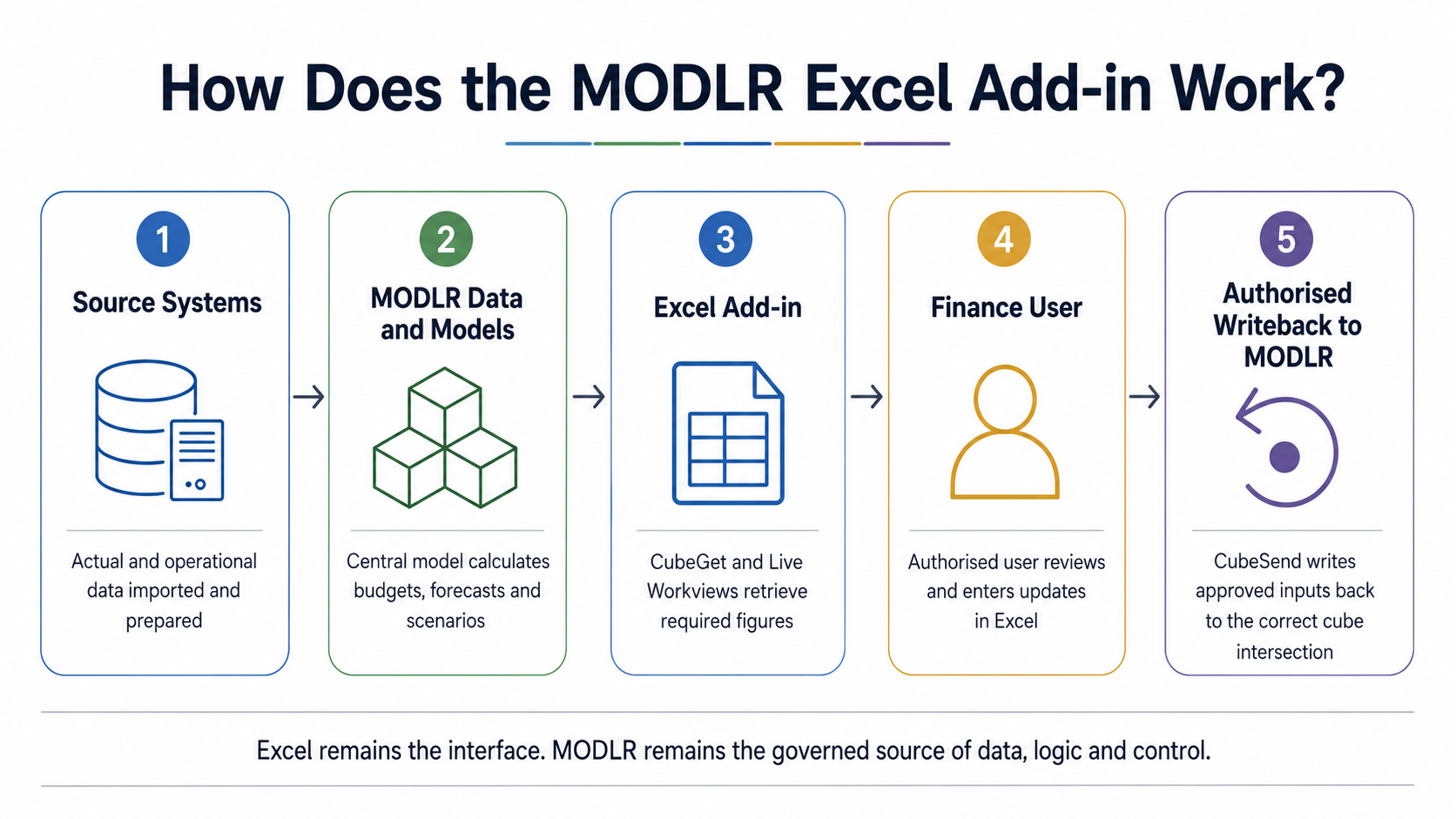
As shown in the visual, typical workflow with the MODLR Excel Add-in goes like this:
- MODLR imports and prepares actual and operational data.
- The central planning model calculates budgets, forecasts and scenarios.
- Excel, using the Add-in, retrieves the required figures through CubeGet formulas or Live Workviews.
- An authorised budget owner enters assumptions or forecast updates in Excel.
- CubeSend writes the value back to the correct MODLR cube intersection.
- MODLR applies the organisation’s calculation logic, permissions and reporting controls.
The Excel workbook remains the interface. The shared data and planning model remain in MODLR.
Does the MODLR Excel Add-in replace Excel?
No. The MODLR Excel Add-in does not remove Excel from the finance toolkit.
Instead, it allows Excel to act as a front end for MODLR. Finance users can continue working in Excel where it makes sense, while the core planning model, data, calculations, security, audit trails, and workflows remain in MODLR.
This is especially useful for organisations where Excel familiarity is high and a full move away from spreadsheets would likely lead to resistance.
What is the Excel-as-front-end approach?
The Excel-as-front-end approach is a hybrid way of working.
Instead of using Excel as the place where planning logic, data, formulas, and approvals live, Excel becomes a window into a structured MODLR model.
In this setup, MODLR acts as the storage and calculation engine. Excel acts as the user interface.
This allows finance teams to keep the flexibility and familiarity of Excel while improving the structure, governance, and control of financial planning.
Excel Alone vs Excel with MODLR?
In a pure Excel model, the data, formulas, assumptions, links, and approvals often sit inside multiple disconnected spreadsheets. With the MODLR Excel Add-in, Excel acts as a user interface. MODLR owns the model, manages the data, controls access, and maintains the audit trail.
Here’s a summary of the main differences:
This is where MODLR’s Excel integration becomes especially useful. Finance teams can keep working in familiar Excel layouts while connecting their worksheets directly to MODLR data, models and reporting structures.
Instead of copying numbers between disconnected files, users can retrieve data from MODLR, send authorised inputs back into the model and continue using Excel as a controlled front end for connected planning.
With Excel alone, the spreadsheet is the planning system. With the MODLR Excel Add-in, Excel remains familiar, but MODLR provides the structure, control, and governance behind the numbers.
What Can Users Do with the Excel Add-in?
Through the MODLR Excel Add-in, users can do the following:
Retrieve and analyse data
- Pull values from MODLR cubes using CubeGet.
- Open and interact with Live Workviews.
- Build custom management and board-reporting layouts.
- Refresh connected worksheets and workbooks.
Enter and submit planning data
- Send authorised values to MODLR cubes using CubeSend.
- Use Workview validations and controlled input structures.
- Capture budgets, forecasts and operational assumptions in familiar layouts.
Run MODLR reporting from Excel
- Link Cards to Excel cell ranges.
- Run Cards using workbook context.
- Output Card tables into worksheets.
- Create static versions of workbooks for wider distribution.
MODLR’s newer Add-in releases also support card-execution formulas, Workview validations, Live Workview auto-refresh and after-refresh macros. Features may vary by Add-in and MODLR instance version. See the latest MODLR release notes for current functionality and updates.
The Excel MODLR Add-in gives finance teams a practical bridge between spreadsheet-based workflows and structured connected planning.
What is CubeGet and CubeSend in the MODLR Excel Add-in?
CubeGet and CubeSend are both MODLR Excel formulas.
CubeGet is a MODLR Excel formula that retrieves data from a MODLR cube. It allows users to pull a value from a specific cube intersection into an Excel cell. For example, a finance user could retrieve revenue for a specific scenario, year, month, account, department, and measure.
This is useful for reporting, analysis, custom layouts, and Excel-based review packs that need to display live data from MODLR.
CubeSend is a MODLR Excel formula that sends a value from Excel into a MODLR cube. This allows authorised users to enter or update planning data from Excel while still writing that data back into the structured MODLR model.
For example, a budget owner could enter a value in Excel, and that value could be sent to the correct intersection in a MODLR cube.
Used together, CubeGet and CubeSend support a two-way planning workflow. For example, CubeGet could retrieve the current headcount forecast for the Marketing department, while CubeSend could write an authorised revised headcount assumption back to the same department, period and scenario in MODLR.
Can Users Open MODLR Workviews in Excel?
CubeGet and CubeSend are both MODLR Excel formulas.
CubeGet and CubeSend are both MODLR Excel formulas.
CubeGet is a MODLR Excel formula that retrieves data from a MODLR cube. It allows users to pull a value from a specific cube intersection into an Excel cell. For example, a finance user could retrieve revenue for a specific scenario, year, month, account, department, and measure.
This is useful for reporting, analysis, custom layouts, and Excel-based review packs that need to display live data from MODLR.
Can You Build Custom Excel Reports & Board Packs with MODLR data?
Yes. Finance teams can build custom Excel layouts that pull live data from MODLR.
This is useful when teams have established Excel reporting formats, board pack layouts, management reporting templates, or custom analysis models that users already understand.
Instead of manually copying numbers into these reports, users can connect the layout to MODLR data through the Excel Add-in.
Can MODLR Cards be Used in Excel?
Yes. MODLR Cards can be linked to Excel cell ranges and executed using the dimensional context of those cells. This allows a user reviewing a figure in Excel to open a related MODLR visualisation or report without manually rebuilding the context. Card table contents can also be written into a worksheet where required.
This helps connect Excel-based review processes with MODLR’s model-driven reporting capabilities.
Permissions, Governance & Auditability: How Are Access and Writeback Controlled?
Connecting Excel to MODLR does not automatically give every user access to every model or value. Users work through their authorised MODLR access. Ability to writeback should be limited according to their assigned permissions and the design of the planning application.
This means a department manager may be allowed to update assumptions for their own cost centre while being restricted from viewing or changing sensitive data elsewhere in the model. Excel provides the interface, but MODLR continues to govern access to the underlying planning environment.
Why is the MODLR Excel Add-in Useful for Finance Teams?
The MODLR Excel Add-in is useful because it reduces the friction of moving from spreadsheet-based planning to connected planning.
Many finance users are comfortable in Excel. They know how to format reports, build analysis, review numbers, and work with spreadsheet layouts. The Add-in allows them to keep that familiar experience while moving the core planning model into MODLR.
This helps finance teams improve governance without forcing every user to abandon Excel immediately.
Does the MODLR Excel Add-in Support Connected Planning?
Yes. The Add-in supports connected planning by connecting Excel users to the same central MODLR data, models, assumptions and reporting structures. Instead of each workbook containing a separate version of the plan, authorised users interact with shared planning data governed in MODLR.
Related capability: MODLR’s Visual Scripting Engine can automate the upstream processes that import, transform and prepare data before it reaches the planning model.
Is The MODLR Excel Add-in Suitable for Excel Replacement Projects?
Yes. The MODLR Excel Add-in is well suited to Excel replacement projects where users still value an Excel interface.
Rather than giving up Excel completely, organisations can move core assumptions, calculations, controls and consolidated reporting into MODLR while retaining Excel for analysis, reporting and data entry. This allows finance teams to modernise high-risk spreadsheet processes gradually without forcing users into an entirely new way of working.
What Finance Processes Benefit From the MODLR Excel Add-in?
The MODLR Excel Add-in can support many finance and FP&A processes:
Budgeting and forecasting
Budget owners can enter authorised assumptions in familiar Excel templates while MODLR centralises the submissions and recalculates the wider plan.
Management and board reporting
Finance teams can preserve established report layouts while replacing manual copy-and-paste updates with connected MODLR data.
Variance analysis
Actual, budget and forecast values can be retrieved into an Excel review template for analysis while the underlying figures remain connected to the central model.
Workforce, capex and departmental planning
Specialised Excel input layouts can be retained for individual planning processes while the resulting data is written back into shared MODLR cubes.
The Excel Add-in can work with these and other FP&A solutions in MODLR:
- Annual Budgeting
- Rolling Forecasts
- Management Reporting
- Variance analysis
- Scenario planning and what-if analysis reviews
It is particularly useful where teams want to modernise planning without removing Excel from every workflow.
What is the Main Benefit of Using Excel with MODLR?
The main benefit is that finance teams are able to work with Excel’s flexibility while gaining MODLR’s structure.
Excel remains useful for layouts, review, analysis, and user familiarity. MODLR provides the central model, governed data, calculation logic, security, workflow control, auditability, and reporting foundation.
In simple terms, Excel shows the numbers, but MODLR owns the model.
Final Takeaway
The MODLR Excel Add-in gives finance teams a practical path away from disconnected spreadsheet planning.
It allows Excel to remain part of the finance toolkit, but changes its role. Instead of being the core planning system, Excel becomes a front end for a structured MODLR model.
This helps organisations combine user familiarity with stronger governance, connected data, controlled logic, auditability, and scalable financial planning.
Want More Info on MODLR’s Excel Add-In?
Get in touch with us via the MODLR Contact Us page.
- Get a MODLR demo today by writing to info@modlr.co
- Visit and follow MODLR’s company page on LinkedIn for regular updates.
- See tutorials and video updates in our YouTube channel.
- Read the Excel Add-In & Transition to Connected Planning FAQs below.
FAQs: MODLR Excel Add-in & Transition from Excel to Connected Planning
What is the MODLR Excel Add-in?
The MODLR Excel Add-in connects Microsoft Excel directly to MODLR. It allows finance teams to retrieve data from MODLR cubes, send authorised inputs back into the model, open Workviews, run selected Cards and create connected Excel reports using familiar layouts.
Do finance teams have to stop using Excel after implementing MODLR?
No. Excel can remain part of the finance workflow for reporting, analysis, review and data entry. The difference is that MODLR becomes the governed planning platform behind it, managing the shared data, calculations, permissions, workflows and audit trails.
How does the MODLR Excel Add-in work?
The Add-in connects an Excel workbook to an authorised MODLR instance. Users can retrieve data through CubeGet formulas or Live Workviews, enter approved planning inputs in Excel and write those values back to the correct MODLR cube intersections using CubeSend.
Excel remains the interface, while MODLR remains the governed source of planning data and logic.
What is the difference between the MODLR Excel Add-in and Excel integration?
MODLR’s Excel integration is the broader ability to import, export or process spreadsheet-based data as part of a planning or data workflow.
The MODLR Excel Add-in is a specific user-facing tool that allows people to work directly with MODLR from inside Excel.
Put simply, Excel integration helps MODLR work with spreadsheet data. The Excel Add-in lets Excel users interact directly with MODLR.
Can users pull live MODLR data into Excel?
Yes. Users can retrieve data from MODLR cubes directly into connected Excel workbooks. This allows reports, board packs and analysis templates to display current MODLR data without relying on manual copying or static exports.
Can authorised users send data from Excel back into MODLR?
Yes. Authorised users can enter budgets, forecast updates and planning assumptions in Excel and send those values back into the appropriate MODLR cube intersections.
The data is stored in the central MODLR model rather than remaining isolated in an individual workbook.
What are CubeGet and CubeSend?
CubeGet is a MODLR Excel formula that retrieves a value from a specified cube intersection and displays it in an Excel cell.
CubeSend writes an authorised value from Excel back into a specified MODLR cube intersection. Together, they support two-way interaction between Excel and the MODLR planning model.
Can MODLR Workviews be opened in Excel?
Yes. Live Workviews allow users to open and interact with structured MODLR data views from within Excel. Users can work with dimensions, rows, columns, headers and set instructions while retaining a familiar spreadsheet experience.
Can MODLR Cards be run from Excel?
Yes. Selected MODLR Cards can be linked to Excel cell ranges and run using the dimensional context of those cells. Where relevant, Card table content can also be output into an Excel worksheet.
Can finance teams retain existing Excel report and board-pack layouts?
Yes. Finance teams can preserve familiar Excel formats, including management reports, board packs, variance-analysis templates and custom review layouts.
The Add-in connects these layouts to MODLR data, reducing the need to update reports through manual copying and pasting.
Does the MODLR Excel Add-in reduce spreadsheet risk?
Yes. It helps reduce risks associated with disconnected files, including version confusion, manual consolidation, outdated figures, uncontrolled formulas and limited auditability.
Excel can still be used where it adds value, but the central data, calculation logic, permissions and controls remain in MODLR.
What finance processes can use the Add-in?
The MODLR Excel Add-in can support:
- Budgeting and forecasting
- Management and board reporting
- Variance analysis
- Scenario reviews
- Departmental data collection
- Workforce and headcount planning
- Cost centre and revenue planning
- Capital expenditure planning
It is particularly useful where organisations want stronger planning controls without removing Excel from every workflow.
Can workbooks be shared with people who do not use MODLR?
Yes. MODLR formulas can be removed from a workbook to create a static Excel version with fixed values. This is useful for distributing reports, board packs and extracts to recipients who do not require live MODLR access.
What happens if a user changes an Excel workbook connected to MODLR?
Users can usually change an Excel workbook’s formatting, layout, commentary and local analysis without changing the central MODLR model.
Changes to connected formulas require more care. Editing a CubeGet formula may change which MODLR value is retrieved, while changing a CubeSend formula or its referenced input may affect what value is written back and where it is stored. Any writeback remains subject to the user’s MODLR permissions.
Changes made to the layout or dimension settings of a Live Workview can also be saved back to MODLR when the user selects the Save Workview option.
Where Excel is used through a broader data integration rather than the Add-in, spreadsheet changes will normally affect MODLR only when the file is imported or the relevant integration process runs again. Excel remains the interface or data source, while MODLR continues to govern the central model, data and access controls.
What systems and Excel versions support the MODLR Excel Add-in?
The MODLR Excel Add-in is designed for supported 64-bit versions of Microsoft Excel on Windows. Users should check the latest MODLR installation documentation before deployment, as operating-system, Excel-version and technical requirements may change over time.